
Google Business Profile Problems Solved
Is Google Business testing every nerve you’ve got?
Yeah, I get it. It’s like, one minute you’re trying to make your biz the go-to spot in town, and the next, you’re scratching your head wondering why your address is wrong on Google Maps or why some random review is throwing shade at your reputation.
These issues happen all the time, to the best of us, and it can feel like the world is against you, but all these problems are actually pretty common.
Let me break it down for you.
The biggies I see all the time include things like getting your business verified without wanting to tear your hair out and figuring out what to do if there’s another listing pretending to be your business twin.
Then there’s the whole drama of claiming your business if someone else has already, responding to reviews without losing sleep, and fixing your location on Google Maps so people aren’t ending up in a random alley. “Where are you?!?”
Oh, and let’s not forget about deciding who can help manage your profile without handing over the keys to the kingdom, boosting your visibility so you’re not invisible online, keeping your content fresh, and making sure your service area and categories are as accurate as can be. And the dreaded profile suspension.
I get it, it sounds like a lot, but here’s the kicker: each of these headaches has a pretty straightforward fix. Imagine we’re sitting down over coffee, and I’m walking you through how to tackle each one, step by step. That’s what I’m here for.
So, let’s roll up our sleeves and turn those Google Business Profile woes into wins. Trust me, it’s going to be a game-changer for connecting with your customers and making your business shine online. Ready to dive in?
I’m Torie Mathis, Marketing Agency CEO, digital marketing coach at the Smart Arsenal, and fixer of oh so many Google Business issues…let’s get started.
Here are the 10 most common issues, problems, or questions business owners face with Google My Business:
1. Verification Issues
Many business owners struggle with the verification process, which is essential for making their business profile live. This can be due to lost verification postcards, delays, or errors in the verification code.
Check your mail carefully:
Sometimes, the postcard may take up to 14 days to arrive. Ensure you check your mail thoroughly.
Request a new code:
If the postcard hasn’t arrived, you can log into your Google Business Profile and request a new verification code.
Contact support:
If repeated attempts fail, use the Google Business Profile help center to contact support for assistance.
2. Duplicate Listings
Finding or accidentally creating duplicate listings for the same business location can confuse customers, negatively impact search rankings, and get your profile suspended. Merging or removing duplicates is a common concern.
Identify duplicates:
Search for your business on Google to find any duplicate profiles.
Claim and merge:
If you find duplicates, claim them by following the verification process, then request to merge them through the Google Business Profile support page.
Delete if necessary:
If a duplicate listing is unverified, you can suggest an edit to remove it directly on Google Maps.
3. Incorrect Business Information
Maintaining accurate business information (like your hours, address, and phone number) is crucial. Owners often encounter issues updating their information, leading to potential customer confusion.
Log in to your profile:
Go to your Google Business Profile.
Edit information:
Click Edit Profile and click the pencil icon next to the information you wish to update.
Save changes:
After making your edits, click “Save” to save the changes.
4. Ownership Conflicts
Sometimes, a business profile is claimed by someone else, leading to ownership disputes. Resolving these conflicts and gaining rightful access to manage the profile is a frequent challenge.
Request ownership:
If the profile is claimed by someone else, you can request ownership by clicking on “Request access” and filling out the form.
Follow up:
Google will then contact the current owner, and you’ll be notified of the outcome.
5. Reviews Management
Dealing with negative reviews or fraudulent reviews is a significant concern. Business owners frequently seek advice on how to respond to reviews and how to remove ones that violate Google’s policies.
Respond to reviews:
Log in to your profile and go to the “Reviews” section to respond to reviews professionally.
Flag inappropriate reviews:
For fraudulent or inappropriate reviews, click on the flag icon next to the review to report it to Google for potential removal.
Missing Reviews:
If you find reviews are missing, contact Google Support to get the reviews reinstated.
This is a problem I have even experienced, and I will walk you through how to manage your reviews in this video.
6. Problems with Google Maps Integration
Issues with incorrect map pins or location information can make it hard for customers to find the physical location of a business. Sean has had this problem with Miles Through Time, where the address was incorrect.
Correct your location:
In your Google Business Profile, go to Edit Profile, click on Locations and Areas/Business Location, and use the map to precisely position the marker.
Report map issues:
If there’s a problem with Google Maps itself, use the “Report a problem” feature in Google Maps to notify Google. This is what Sean did, and he ended up making a video for Google to prove his business location. It took a bit to work out, but it was better than his other option of starting over, which would have had him lose all of his reviews.
I made this mistake when we moved across states. I created a new business listing and lost all of my reviews going back to 2007, so do what you can to keep your listing and make adjustments instead of starting from scratch when you can.
7. Access and Permissions
Understanding how to grant, manage, or revoke access to other users (like for your office, manager, or a marketing agency) can be confusing, especially with the nuances of different permission levels.
We do this all the time for our clients. We create the listing for them or claim their business, then hand the listing over to them as the primary owner.
Manage users:
In your Google Business Profile, click the three dots menu and go to business profile settings. Go to the “People and Access” section, where you can add or remove users and change their access levels.
Invite new users:
Click on “Add users” and enter their email address to grant access.
I dove into all the different types of access in depth in a video you can watch here.
8. Visibility and Ranking Issues
Improving the visibility and ranking of a business profile in search results is a common goal. Business owners often question why their profiles aren’t appearing for relevant searches.
Optimize your profile:
Ensure your profile is complete, with accurate business information, photos, and regular updates. Go to your profile and go through every single section; it should only take you about 10 minutes, but it will be well worth it.
Collect reviews:
Encourage satisfied customers to leave positive reviews, as reviews are a ranking factor that will increase your profile’s visibility.
Keep your profile fresh by posting updates, photos, and products.
I have a full video with more details on optimizing your profile that you can watch right here.
9. Service Area and Categories Confusion
For service-based businesses or those without a physical storefront, setting up service areas and choosing the correct business categories can be tricky. This also includes understanding how to best represent the business to appear for the right searches.
Set or edit your service area:
Click Edit profile, click the location tab, and click the edit pencil icon at Service Area to edit your service areas
Choose the right categories:
Click About, then go to Business Categories. Select the primary category that best describes your business. You can also add additional categories to capture the full scope of your services.
And then there’s the curveball nobody wants to catch – a suspended profile.
10. Suspended Profile
You’ve put in the work, your Google Business Profile is looking sharp, and out of nowhere, bam, your profile is suspended. It’s like being benched in the middle of the big game. You’re left wondering what went wrong and how you can get back in play.
Dealing with a suspended profile can feel like navigating a maze blindfolded. Maybe it’s because of a minor oversight or something out of your control, but the impact? It’s huge.
Your visibility takes a nosedive, and it feels like you’re shouting into the void, trying to get noticed by customers who can’t find you anymore.
But here’s the good news: it’s not the end of the road. Getting your profile back up and running is totally doable. It’s about understanding why Google threw the penalty flag and then making the right moves to get back in the game.
I have a full video dedicated to this problem, and you can watch it right here.
As always, if you have any issues, you have a few options.
First, you can drop a comment right here, and I will do my best to help you out.
Next, you can hop on over to the Google help community, where other Google pros can offer up some advice.
Or if you’d prefer, you can contact Google Support or set up an appointment with a Google Advisor, I will put all those links in the description for you.
Once you get your Google Profile all squared away, how about we get you more reviews on Google and all across the web?
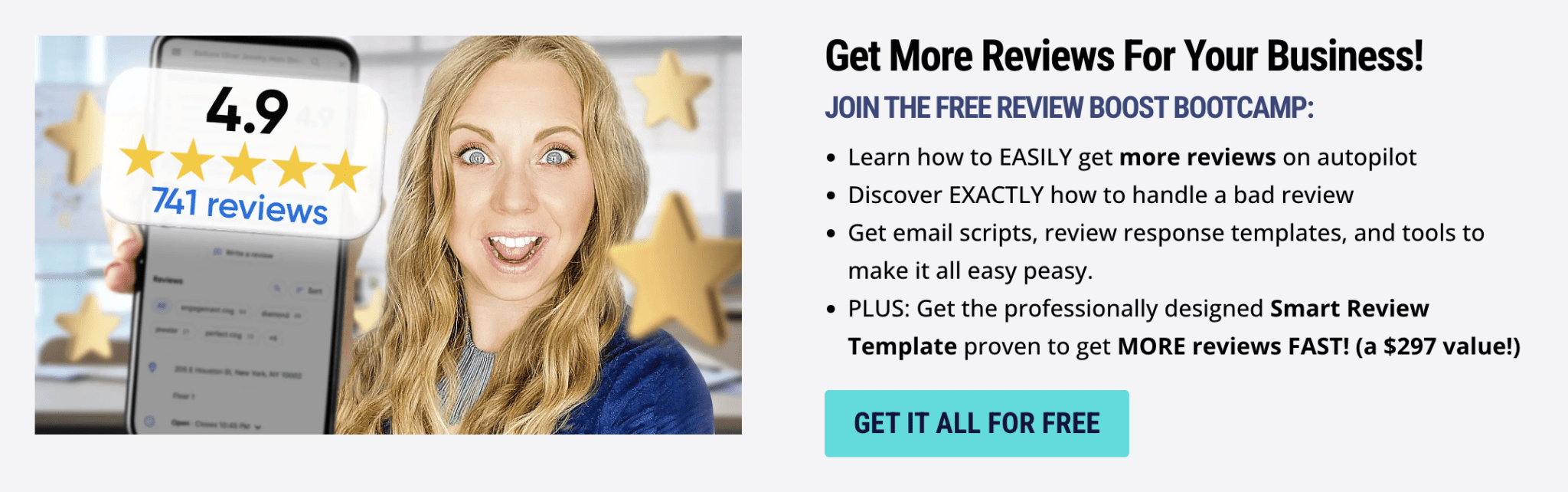
I have a FREE review boosting boot camp happening right now. You can join for free and get step by step, easy peasy instructions on how to get your business set up for reviews, how to get more reviews, and even how to deal with negative reviews.
You also get a ton of DFY templates and scripts, tools to automate your review process, and I’m giving you a professionally designed review landing page that will get you more reviews today!
About Digital Marketing Expert Torie Mathis
 Torie Mathis helps entrepreneurs, like you, use digital marketing to grow your business without wasting time, money, or your sanity. She is a best-selling author, Army veteran, speaker + trainer, and your digital marketing coach. You don't need crazy tech skills, buckets of cash, or dedicated staff to market your business. In fact, you don't even need a lot of time. What you need is to be SMART.
Torie hosts SMART AF, a show for non-techy entrepreneurs looking to grow their business, with her husband Sean and is the creator of SMART AF Magazine. Learn from Torie at the Smart Arsenal and on her channel.
What do you think? Let's talk! Leave a comment.

 I help entrepreneurs learn digital marketing.
And I make it easy!
You don’t need crazy tech skills, buckets of cash, or dedicated staff to market your business. You don’t even need a lot of time.
What you need is to be SMART.
Is YOUR marketing SMART?


YOU MAY ALSO LIKE


Hi! I'm Torie!
 I help entrepreneurs (like you) use digital marketing to get more clients + make more money. And I make it easy!
You don’t need crazy tech skills, buckets of cash, or dedicated staff to market your business. You don’t even need a lot of time.
What you need is to be SMART.
Smart Marketing For
Get Smart AF
DELIVERED TO YOUR INBOX
from your Digital Marketing Coach Torie Mathis!
Let's get SMART!
Let's Connect!

*Posts may contain affiliate links. If you use these links to purchase, I may earn a commission at no additional cost to you.
0 Comments